Part 2: Design a FORM using CSB table return to part 1
Printable interactive form samples - no email response
If you want to print a form instead of emailing, you have two options:
 Build a plain white table, instruct your user to print, fill it, fax it. (sample by KW)Create an interactive form that your visitor can complete online, print then mail or fax.
 Just make the table with fields and you have it! (scroll down for two samples, or )
Sample 1:
Name:
|
||||
Address:
|
||||
Best Time to call:
|
AM
PM
|
|||
photo #
|
type of frame
|
cost
|
how many
|
size
|
123-s
|
$10
|
5x7
|
||
123-m
|
$25
|
8x10
|
||
123-l
|
$100
|
11x14
|
||

Sample 2:
Name:
|
|||
Address:
|
|||
Comment:
|
|||
photo #
|
type of frame
|
cost-quantity
|
size
|
123small
|
5x7
|
||
123med
|
8x10
|
||
123large
|
11x14
|
||

BUILD A TABLE THEN
PUT THE FORM FIELDS INTO DIFFERENT CELLS
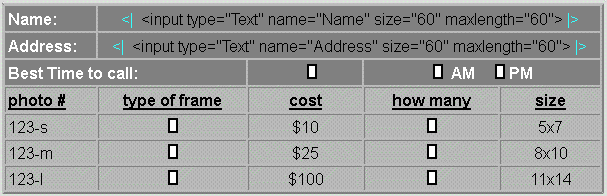
| Draw a table to fit your needs. Click on a cell where you want an input field. Choose how you want to put the HTML code into the table. The image above shows two ways to do it:
PASSTHRU technique (like Name and Address) using <| before and |> after the code.This puts the code directly into the table so you can see it in the design window.
If using this method, it must be ALONE on the line/cell and use the passthru codes.
Important: make sure you have no spaces between the passthru codes
INSERT > HTML (webgem in Trellix) (LIKE 123-s, 123-m, 123-l)The code is inserted and a placeholder image shows in the design window
If inserting the code into Insert> HTML (webgem) DO NOT use the <| |>.
In smaller cells, I find this way works better than passthru technique.
This is the placeholder image I use in tables so it doesn't take up so much space:
Right click it to "save as" to use for HTML your placeholder.
 |
THE HTML CODE FOR INPUT FIELDS:
Copy and Paste these codes. Insert one field for each answer needed. Modify for your needs.
Simple text entry:
<input type="Text" name="Name" size="60" maxlength="60">
<input type="Text" name="123-s" size="10" maxlength="10">
<input type="Text" name="small" size="10" maxlength="10">
<input type="Text" name="1" size="10" maxlength="10">
This one allows more input by the user than the field size visible:
<input type="Text" name="Address" size="60" maxlength="200">
|
Simple comment/message entry: (can be seen on the green form below)
<textarea name="Comment" cols="52" rows="10" wrap="VIRTUAL"></textarea>
|
Simple dropdown choice:
<SELECT NAME="123-sFrame" SIZE=1>
<option value=Choose selected>CHOOSE ONE
<option value=Oak-Light>Oak - Light
<option value=Oak-Dark>Oak - Dark
<option value=Cherry>Cherry
<option value=Black>Black metal
<option value=Silver>Silver metal
<option value=Gold>Gold Leaf
<option value=Wedding-crystal>Wedding - Crystal
</SELECT>
Another simple dropdown choice:
<SELECT NAME="123-scost" SIZE=1>
<option value=Choose selected>CHOOSE ONE
<option value=1 = $10>1 = $10
<option value=2 = $20>2 = $20
<option value=3 = $25>3 = $25
<option value=4 = $30>4 = $30
<option value=5 = $35>5 = $35
</SELECT>
Reference Note about the code above:
Purple: the name of the input field.
Choose selected>CHOOSE ONE
Green: this is a one word description that comes back in the email to you
Blue: this word "selected" tells the form that this is the default answer (recommend you put this at the top of the dropdown list on a line that asks visitor to choose.)
Red: This is the word or phrase contained in the dropdown on the form
|
Simple radio dial entry:
<input type="radio" name="MornEve" value="AM"> AM
<input type="radio" name="MornEve" value="PM" checked> PM
Reference Note about the radio dial code:
All choices for this field must be in the same cell to avoid errors.
Green: this word "checked" tells the form that this is the default answer
Purple: this word is typed into the table, not the inserted HTML code
|
OPTIONAL: You can add a print page button to your form
 Above the table, put this code into an Insert HTML: Above the table, put this code into an Insert HTML:<form action="method">
Below the table, put this code into an Insert HTML:<INPUT TYPE="button" name="printMe" onClick="print()" value="Print Page"> </form>
|
SEE OTHER FORM SAMPLESClick the image to see other forms created using this way
 |
Send me a comment from the form if you like!
|
 |
The forms on this page were first drafts/samples for this site. This black form is the final form in use.
|
 |
Richard has used the same concept of inserting html code into a table to create a printable form.
|
Known limits to this form: NONE.
If you are just printing the form, then there is NO limit on how many fields you can use!
|