Test Index · Photo Borders · Table of sliced images - Rounded corners · Sliced images and manually linked · Overlap Images · Create a Watermark · Gif Png Transparency · Buttons-Image Links · Image Names · Image Theft · Lake Applet · Other applets · Slideshow1 · Slideshow2 · Slideshow3 · Galleries · DD Thumbnail Viewer · image map · xara thumbnail · Random Image · LOGO BRANDING · Animated Image · photo with sound
Lake: moving water on static image
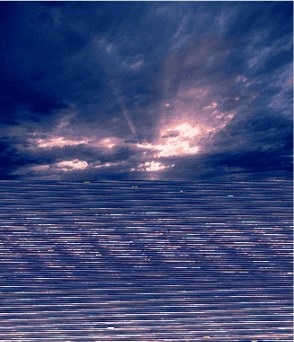 ALERT!! Windows XP SP2 ALERT!! Windows XP SP2 <<<< makes these Lake applets look like this
Since Microsoft XP released Service Pack 2, the Lake.class applet will not work correctly!
To avoid the problem, STOP USING the
Lake.class file and begin using the newer
lake.class file that is available here:
In the instructions below, replace the Lake with lake!
(The lowercase letter and the newer class file really matter!)
|
|
Instructions included with these:
|
More moving water examples:
|
TEST 1: Original Lake and variations
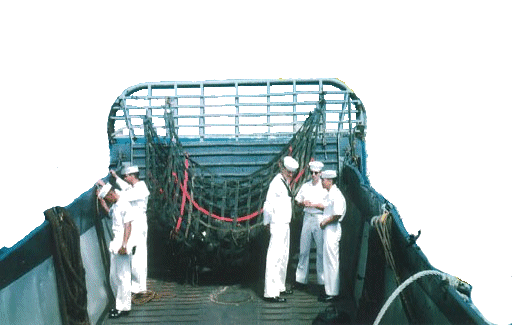
TEST 2: Liberty boat of sailors coming to shore
(with intricate large overlay)
NOTE: this page will take some time to load!
|
(these have visual only no detail instructions)
[Applet: Lake]
|
 2
2 
TEST 1: Lake (original)
This test sample is an updated version and several variations of KW's Tutorial #13 shown here: Tutorial List
Credits: David Griffiths wrote the applet and
Kevin Weilbacher modified the code
that goes with it to work in Trellix/CSB.
IMPORTANT: The Lake.class offered on Java Script Kit site will not work with this set of instructions. Here is the correct version:
(update: see Windows XP SP2 notice above before downloading. Recommend the other file!)
Download image here:
|
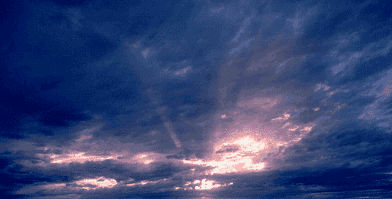
Take a plain image:
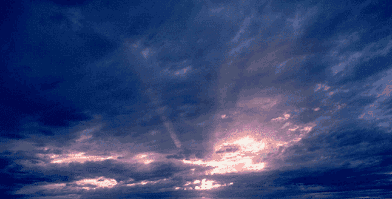 And transform it into:
|
Important note: This tutorial was originally made with Lake.class not lake.class! The capital L matters! This is a sample of David Griffith's original code:
<applet code=Lake.class id=Lake width=392 height=380 >
<param name=image value="dusk.gif">
<param name=href value="http://www.javascriptkit.com">
</applet>
NOTE: if you are NOT using CSB or TRELLIX to build your site:
1. Adjust your image size as discussed in step 1 below
2. Use the code ABOVE instead of the code shown in step 2, just changing the image size and name.
3. FTP your image and class file to your site.
4. Publish.
|
1. Adjust image size:
Use a photo program to check pixel size. Width stays the same.
Height of image increased: multiply by 1.9 Ex: height is 199 199 x 1.9 = 378.1 = rounded to 380 pixels
Use your calculated height in the inserted HTML code
|
|
CSB User: Insert > HTML is same as Trellix Webgem!
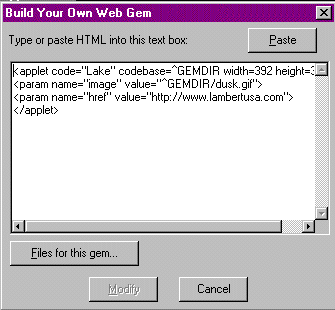 2. Insert the code: into Webgem (Insert > HTML)
CSB User: still use ^GEMDIR in code!
<applet code="Lake" codebase=^GEMDIR width=392 height=380>
<param name="image" value="^GEMDIR/dusk.gif">
<param name="href" value="http://www.samisite.com">
</applet>
NOTE: Items in red are changed to match yours
(not using CSB or Trellix to build your site? read this)
|
CSB User: Files for this component is same as Gem Files!
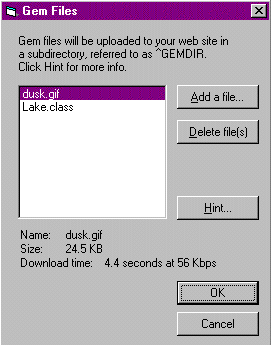 3. Insert both files into Gem files (Webcomponent)
Make sure capitalization is same as you used in the code (step 2)! This step eliminates the need to FTP your files to your site!
4. Publish!
|
NOTE: if using frames, the link will load in current frame unless you add:
<param name="target" value="_top"> (added to variation 2)
or to open in a new window, add:
<param name="target" value="_blank"> (added to variation 3)
|
|
VARIATION 1: add a border
Add items in blue for a tight border around image:
<center><table border=5 cellspacing=0 cellpadding=0><tr><td>
<applet code="Lake" codebase=^GEMDIR width=392 height=380>
<param name="image" value="^GEMDIR/dusk.gif">
<param name="href" value="http://www.samisite.com">
</applet></td></tr></table></center>
NOTE: Items in red are changed to match yours
|
VARIATION 2: smaller image overlay
 This would be great for a logo or text- overlay must be gif with transparency This would be great for a logo or text- overlay must be gif with transparency |
|
Add items in blue for a tight border around image
& item in red allows you to add an image on top of the original picture
& item in light blue breaks frame on link:
<center><table border=7 cellspacing=0 cellpadding=0><tr><td>
<applet code="Lake" codebase=^GEMDIR width=392 height=380>
<param name="image" value="^GEMDIR/dusk.gif">
<param name="overlay" value="^GEMDIR/boat.gif">
<param name="target" value="_top">
<param name="href" value="http://www.samisite.com">
</applet></td></tr></table></center>
NOTE: Items in red are changed to match yours
sailboat001.gif image is 53x100 pixels and automatically centers on overlay
|
VARIATION 3: large image overlay
| Use for a view through (trees, window, stateroom window on boat, etc) overlay image must be gif with transparency |
item in red allows you to add an image on top of the original picture
& item in light blue opens into a new window on link:
<applet code="Lake" codebase=^GEMDIR width=392 height=380>
<param name="image" value="^GEMDIR/dusk.gif">
<param name="target" value="_blank">
<param name="href" value="http://www.samisite.com">
<param name="overlay" value="^GEMDIR/seagrapes.gif">
</applet>
NOTE: Items in red are changed to match yours
seagrapes.gif image is 392 x 395 pixels and automatically centers on overlay
overlay image: The seagrape leaves were manually cut out of another image, placed into a transparent image which was expanded longer than the overall applet so all edges would be covered, other wise top edge of dusk would show above seagrapes. Done through the trial and error method tweaking until the final image was satisfactory.)
|
Enjoy!
REFERENCE AND COMPARISON:
|
 Image source: dusk.gif (Javascript Kit with DG's code below) Image source: dusk.gif (Javascript Kit with DG's code below)NOT AVAILABLE FOR DOWNLOAD: (for example only)
 sailboat.gif (Samantha Conway) single frame/non-animatedseagrapes.gif (Samantha Conway) - photo taken in the Keys and trimmed using Paint Shop Pro sailboat.gif (Samantha Conway) single frame/non-animatedseagrapes.gif (Samantha Conway) - photo taken in the Keys and trimmed using Paint Shop Pro |
 This is a sample of David Griffith's code: This is a sample of David Griffith's code:<applet code=Lake.class id=Lake width=392 height=380 >
<param name=image value="dusk.gif">
<param name=href value="http://www.javascriptkit.com">
</applet>
NOTE: if you are NOT using CSB or TRELLIX to build your site, use his code, and FTP your image and class file to your site!
|
| This is what the code looks like with KW's modifications for use in CSB/Trellix: <applet code="Lake" codebase=^GEMDIR width=392 height=380>
<param name="image" value="^GEMDIR/dusk.gif">
<param name="href" value="http://www.samisite.com">
</applet>
|
Test 2: another large image overlayUse any photo and add/replace water!
"Liberty"
Just the background (top) of image and water:
Full image with boat overlay:
This sample was made for USSRankin website and used with permission.
|