Test Index · Table 1 · Table 2 · Table 3 · Table 4 · Table 5 · Table Firefox · table css · Layered Tables · Resort Table · Background Image in Table · Selection Guides · Folding Menu Tree · Menu Buttons · Hidden Site Map · Anchors · Double Border Detail
Table test 2: images and text (merged columns and rows)
The best way to display text and images on the same page? Use a table!
By placing text and images in a table, they will stay lined up where you want them. No more wandering images that squeeze your text!
MOST IMPORTANT: MAKE SURE YOUR IMAGES ARE THE RIGHT SIZE!
If they are wider or taller than the space provided (the cell area) then the final published table will
s
t
r
e
t
c
h to fit the image.
 Best: use photo program to trim (crop) the photo or resize entire shot, then insert into CSBAlternative: insert the photo into CSB, right click to Image Properties to adjust size or crop
 (this option makes your TLX file larger). Note re CSB4: images can be resized, but not cropped.
To create a table, click your table button  on the toolbar and define the size.
The samples below are 3 rows by 3 columns.
Need help with this? KW has a tutorial that covers the absolute basics of building a table.
Place an image into one cell. Place text into another cell. Simple. Clean. Easy!Let the table cells align your text. Don't use the SPACEBAR to push text!But it looks right on the design window! What's wrong????
|
||
First check your images again.
When you click the image to select it, edit points appear around the image. If all four sides have them, the image fits. These points allow you to stretch or shrink your image to fit.
Compare these two photos. The first one does not have edit points on the right side. The column is too thin for the image. When published, the table will stretch to hold the entire image.
Still not right? It might be due to a known CSB error!
|
 this one is cut off
on the right side
|
 this one fits - all four
sides have edit points
|

TIP: Don't turn off your table borders. They show in FireFox and other browsers. Make them invisible!
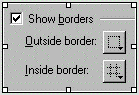
Right click Table choose Properties > Table
Hide the table borders using the dotted lines.
|
 |
Simple tables made better!
Simple Menu - uses a 2 column 4 row table:
The first column was highlighted then FORMAT > Paragraph > indent 0.1 so the words are indented
Buffalo Wings...................................................................
|
$4.95
|
Onion Flower.....................................................................
|
$5.60
|
Mozzerella Sticks .....................................................................
|
$4.25
|
Clam Strips.......................................................................
|
$3.80
|
Same menu, with inside borders invisible:
Buffalo Wings...................................................................
|
$4.95
|
Onion Flower....................................................................
|
$5.60
|
Mozzerella Sticks ...........................................................
|
$4.25
|
Clam Strips......................................................................
|
$3.80
|
Same menu, inserted new column - uses a 3 column 4 row table:
The rows in the first column were merged so an image could be added for interest!
 |
Buffalo Wings.................................................................
|
$4.95
|
Onion Flower...................................................................
|
$5.60
|
|
Mozzerella Sticks ..........................................................
|
$4.25
|
|
Clam Strips.....................................................................
|
$3.80
|
Same menu - table inside of table for additional flare!
|
MERGE CELLS to create larger areas and more interesting presentation!
OVERLAP TWO COLUMNS: If you want an image to overlap two columns in a table, merge to cells into a larger one: highlight the cells> right click > merge cells. For emphasis in the table, I chose to make the background of the merged cells contrasting, but the merged cells can remain the same color as the rest.
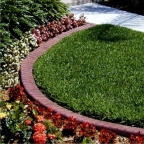
Insert the image into the larger cell and choose the justification left center or right to move the image to the best position for your situation. The image will no longer be directly under one column.
OVERLAP TWO ROWS: The same thing can be done merging cells on two rows in a table to keep an image lined up with corresponding text. If you want an image to overlap two rows in a table, merge to cells into a larger one: highlight the cells> right click > merge cells. Insert the image into the larger cell and choose the justification left center or right to move the image to the best position for your situation. The image will no longer be directly on one row.
3 SAMPLES! Merging to create larger areas!
The third shows a CSB4 error and how to deal with it!
|
1st table: Merging both ROWS and COLUMNS
The first table is shown twice (except: bottom row was removed from the second table). A. First it is shown with the borders for reference,
B. Scroll down to see how it would appear with hidden borders.
Published table is as designed.
1 A with borders showing
The image shown to the right dkfajdsfjlddlflsf slkdfladsjfljdjdljdsfjljdsfljdsfjlfjdljdsflsdfljvxt text text text text text text text text text text text text text text text text text text text
|
merged cells across 2 columns
with centered image
 |
|
merged cells across 2 rows
with left justified image
 |
row texttext text text text text
text text
|
text text text text text text text text text text text text text text
|
row text text text
|
text text text text text text text
|
|
1
|
2
|
3
|
1 B with invisible borders
The image shown to the right dkfajdsfjlddlflsf slkdfladsjfljdjdljdsfjljdsfljdsfjlfjdljdsflsdfljvxt text text text text text text text text text text text text text text text text text text text
|
merged cells across 2 columns
with centered image
|
|
merged cells across 2 rows
with left justified image
|
row texttext text text text text
text text
|
text text text text text text text text text text text text text text
|
row text text text
|
text text text text text text text
|
|
2nd table: Merging ROWS only
Merges rows (vertical), no columns merged (horizontal) Published table is as designed.
merged cells across 2 rows
with left justified image
|
row texttext text text text text
text text
|
merged cells across 2 rows
with center justified image
|
row text text text
|
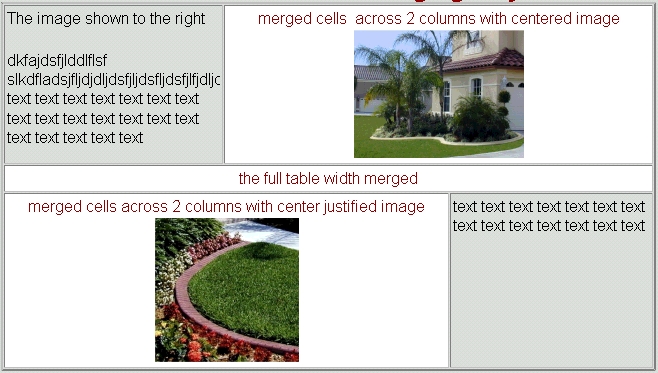
3rd table: Merging COLUMNS only
Merges across columns (horizontal), no row merges (vertical)A. This is how CSB created the table - CSB4 error!!! Cells expand incorrectly!
B. This is an inserted image of how it was designed.
C. This is the same table A, with an extra unmerged row.
Even with the extra row, it does not hold the true shape of the design.
3 A - CSB error - too wide.
The image shown to the right
dkfajdsfjlddlflsf slkdfladsjfljdjdljdsfjljdsfljdsfjlfjdljdsflsdfljvxt text text text text text text text text text text text text text text text text text text text
|
merged cells across 2 columns with centered image
|
|
the full table width merged
|
||
merged cells across 2 columns with center justified image
|
text text text text text text text text text text text text text text
|
|
3 B - DESIGN IMAGE (should be like this!)
3 C - with extra row (helps hold shape, but does not solve problem)
The image shown to the right
dkfajdsfjlddlflsf slkdfladsjfljdjdljdsfjljdsfljdsfjlfjdljdsflsdfljvxt text text text text text text text text text text text text text text text text text text text
|
merged cells across 2 columns with centered image
|
|
the full table width merged
|
||
merged cells across 2 columns with center justified image
|
text text text text text text text text text text text text text text
|
|
|
|
|
3 D - small tables inside a larger one
(alternative to merging columns)
A single column, single row table holds three smaller tables.
The table shown to the right
looks like it has two merged columns but it is really only one wide column.
This is text to the left.
The table shown to the right
looks like it has two merged columns but it is really only one wide column.
This is text to the right.
This table is set for location right.
|
Overlapping images are made in separate photo editing software