Sami's Site: CSB - Trellix Support and Tests
|
   |
CSB4 Rollover Links · Link Styles 1 · Link Styles 2 · Arrowhead · Websafe Fonts and tests · LINK HOVER TOOLTIP · OverLIB tooltip
LINK HOVER TOOLTIP
CSB/Trellix places a TOOLTIP (floating description) in a white popup box over every link! Just hold your mouse over a link and it will appear, giving you more information.
 If you do nothing to it, your tooltip description (title) will show the url address used in the link
sample link (to this page)
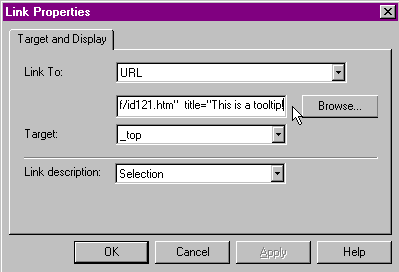
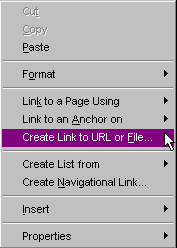
If you define it, the tooltip can have a small description of the page, product, reason for the link. To define a TOOLTIP, place your link in using "Create Link to URL or File" option.
Type in the url then add:
" title="your description here.
Do not put a " at the end of the title. The program will do it for you.
sample link with a defined tooltip
|
 |
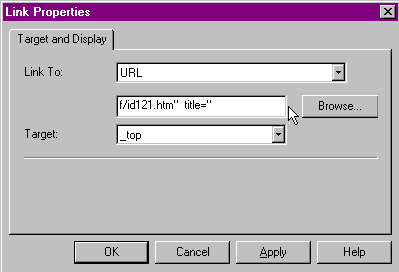
You can remove them.You must define a TOOLTIP.
Place your link in using "Create Link to URL or File" option.
Type in the url then add:
" title="
Do not put a " at the end of the title. The program will do it for you.
sample link with NO tooltip
|
 |
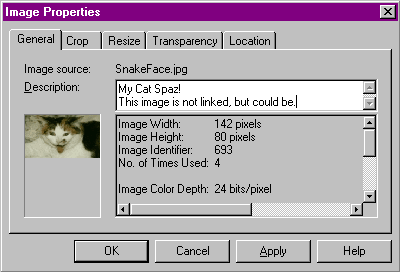
For images: insert the image and then right click choose properties > imageType in the name of the image or a description.
Move mouse over these images:
description left blank, so no tooltip:
 with description shown at right >
 |
 |
Want your tooltip to be more special? Colorful? Unique? Take your pick:
1) Expanded Popup text 2)
 , a very special tooltip script! , a very special tooltip script! |
Expanded Popup text - The rest of this page is based on KW's popup sample #4.
(NOTE: I personally PREFER OVERLIB to this popup script! Nicer features, more flexible.)
I expanded KW's code explanation and added a couple other features:
hover color on links and adjusted underline feature, removed the dotted line from the image when clicked, removed the CSB/Trellix automatic tooltip. Sample links on this page will open to my home page.
All tooltips on this page will use the same settings (placement, width) but can have different colors!
Limitations: Can not have more than one style on a page. Placement is limited. Use of <DIV> codes to activate the floating text limits use if not placed in t tables as shown in examples above! Need more flexibility the try overLIB script instead since each tooltip can have a separate placement, color, style, etc. definition.
TEXT: Roll your mouse over these text links to see tooltips. Note how the text becomes underlined when mouse hovers over.
dotted line when clicked
|
(code below)
dotted line removed, opens in new window
|
(code below)
dotted line removed,
replaced address so no link
|
IMAGE: Roll your mouse over this image to see the tooltip description.
LINKED IMAGE:
|
PLAIN IMAGE without link:
|
There are four codes. You must place the first and second into your page, and you can adjust the width of the popup box in them. Make sure the width in code one and two match! Then use the third style if you use text links and the fourth style if you use image links.
Note: To capture the code, click Select All, Ctrl C to copy code. Ctrl V to paste the code into an insert > HTML (webgem in Trellix).
 #1: style code. Define the link style (hover color and only underline on hover) and add the #pup description. Put at top of the page. (Note: the a: lines that define the link style can be removed, but the #pup line must remain! This code is normally placed into the HEAD section of the page)
#2: popup function. Put at top of page near the first code. (This code is normally placed into the BODY section of the page- - Can adjust the x offset to move text right/left, y offset to move text up/down)- 20
#3: text. Repeated for each of rollover popup text link, changing the id and the content for each.You can make the text align left, center, or right.You can have the hover text with or without a linkThe popup language contains 2 parts: a description and a color: popup('description','color'). If you do not like the color, use a color from this chart. Yes, you can use NAMED colors instead of codes.
LINKED TEXT:
|
PLAIN TEXT:
|
Notes:
 The div id = "d3" must be unique each time you use it on a page!
My samples: I inserted 3 versions of this code. I used id1, id2, and id3 for the text links:
(For visual review only - DO NOT COPY THESE! Use the code in Select All, above, instead!)
<div id="d3" style="width:100%; text-align:left">
<a href="http://www.samisite.com" onmouseover="popup('This support site is designed around<br>pc-based Trellix and CSB web site<br>building software. These instructions<br>may or may not work with<BR>the online version of Trellix!','#7FFFD4')" onmouseout="kill()">GOOD LINK</a></div>
<div id="d2" style="width:100%; text-align:left">
<a href="http://www.samisite.com " onmouseover="popup('All options are included in this sample.<br>The code is available further down the page, #3 ','#BFBF00')" onmouseout="kill()" title="" onfocus="this.blur()" target="_blank">BETTER LINK</a></div>
<div id="d1" style="width:100%; text-align:left">
<a href="javascript: void(0)" onmouseover="popup('This underlines like the others, <br>looks like a link<br>but actually only has the hover text, no link! ','#CCFFCC')" onmouseout="kill()" onfocus="this.blur()" >NO LINK, JUST HOVER!</a></div>
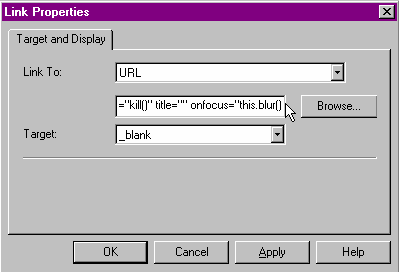
#4: image. Place your image into your page in the usual fashion. (Insert > Picture)Right click the image and choose "Create Link to URL or File" option. Paste the link/tooltip code into the link area as shown in image on the right below instead of insert > html! Leave off the last " as shown because the program will add it for you! Sample link in image will open in a new window.
LINKED IMAGE:
|
PLAIN IMAGE:
|
 |
 |
Understanding the code:
|
|
http://www.address.com"
javascript: void(0)"
|
Change this red to link address you want to use.
Or, replace the address to eliminate the link from the hover code! See it here.
|
onmouseover="popup('line1<BR>line2',
|
When you hover over the image, the popup shows.
The bolded text would be replaced with your text. Use <BR> to add a line break in the text box. Delete if you don't need it!
|
'#7FFFD4')"
|
Choose your popup color. Not sure? Check out these color codes!
|
Note: The colors I used with samples on this page:
aquamarine: #7FFFD4 gold: #BFBF00 peach: #FFCCB2
green: #CCFFCC lavender: #9999CC
|
|
onmouseout="kill()"
|
When you move away from the image the popup hides.
|
title=""
|
This has to be put in or you end up with a second tooltip that CSB/Trellix creates! Hold your mouse over this image to see 2 tool tips (white one is made by CSB) because I left out the code snippet!
 |
onfocus="this.blur()"
|
This piece actually removes the dotted line around the image when clicked. Click the red bullet above and see the dotted line because I left out the code snippet!
|
target="_blank"
or
target="_top"
|
Ignor this if using CSB4! Use dropdown list as shown in image instead.
If you use CSB3 or a version of Trellix, you can add this code snippet to select where you want to the link to load.
_blank = new window
_top = same window
|